
How to Do the Zombie Love Story Trend on TikTok and Reels
Step-by-step: make the AI zombie love story video from two photos, add the trending sound, time the cut, write the caption and turn on the AI label.
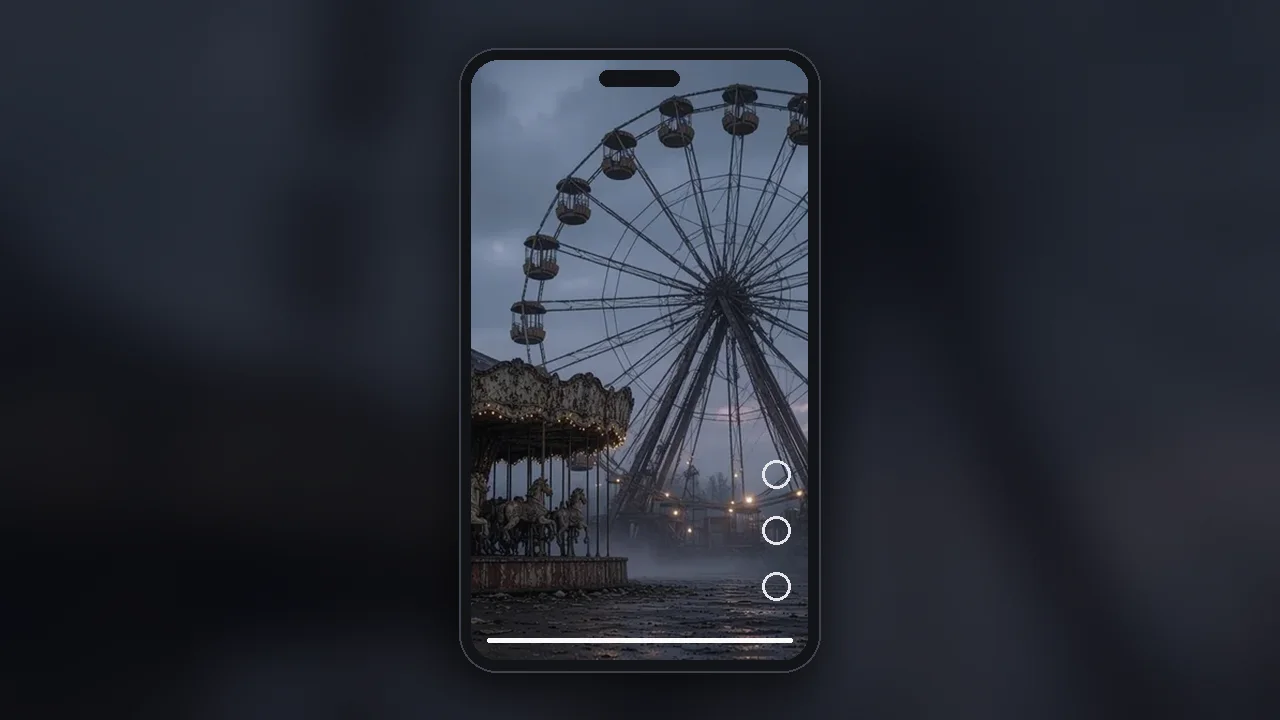
Short answer: Make the video from two photos (one of the survivor, one of the person who turns), export it in vertical 9:16, add the trending sound on top of the built-in sound effects, line up the sound's emotional peak with the jump to the happy memory, write a short caption, and switch on the AI label before you post.
The zombie love story (also called the zombie hug or AI zombie trend) is a short AI video: one of a couple has become a zombie, the other takes aim but can't go through with it, and the hug jumps to a warm memory. Making the clip is only half the job. This guide covers the posting side too, which often matters as much as the clip itself.
Quick facts
| Step | What to do |
|---|---|
| One clear photo of the survivor and one of the person who becomes the zombie |
| Use a two-photo generator, or build the scenes yourself with an AI video tool and an editing app |
| Vertical 9:16 for TikTok, Instagram Reels and YouTube Shorts |
| 4. Sound | Keep the built-in sound effects and add the trending sound inside the app |
| Put the sound's emotional peak on the jump to the memory |
| One short line; the classic is "Would you still love me as a zombie?" |
| TikTok: More options → AI-generated content. Instagram: Add AI label toggle |
Step 1: Choose your two photos
Pick one photo for each role before you start:
- The survivor is the one who takes aim and can't go through with it.
- The zombie is the one they love, who has turned.
On our generator, Photo 1 is the survivor and Photo 2 is the one who turns zombie, and the two photos have to show two different people. Any couple works: a man and a woman, two women, two men.
Use one person per photo, facing the camera, in good light, with the whole face visible. Skip sunglasses, heavy filters and group shots. Only use photos of yourself and adults who have agreed to be in the video. If you're unsure who should play which part, see Who Becomes the Zombie?. For more on choosing photos, read our photo tips for a zombie couple video.
Step 2: Make the video
You have two options:
- A two-photo generator. Upload the two photos and the tool builds the whole story: the standoff, the choice and the memory. No prompt, no editing.
- Do it yourself. Generate the cold zombie scene and the warm memory separately with an AI video tool that accepts reference photos, then join the two clips with a hard cut in an editing app such as CapCut. More control, more time.
Whichever you use, watch the result once before posting. Check both faces in the zombie scene and again after the cut to the memory, where likeness can drift.
Step 3: Export in vertical 9:16
TikTok, Instagram Reels and YouTube Shorts are all built for vertical 9:16 video. If your tool gives you a choice, pick 9:16 so nothing gets cropped. Save the file to your phone's camera roll so you can upload it straight from the app.
Step 4: Add the trending sound (or keep the built-in audio)
Many zombie love story videos use the same short original sound rather than a released song. ai-zombie.com reports that this original sound was posted on September 27, 2026 and was on more than 1,300 videos by October 7. We haven't found a single official song for the trend.
You have two choices:
- Use the trending sound. On TikTok, open a zombie love story video you like, tap the sound name at the bottom, and choose "Use this sound". On Instagram, add audio from the Reels audio library. According to Viberot, adding the sound from the in-app library keeps your video eligible to appear on that sound's page. Lower the original audio if the two tracks clash.
- Keep your video's own audio. If your clip already has sound, you can post it as it is. Ours comes with sound effects, so adding the trending sound on top works naturally. Sound you add inside the app is separate from what the generator produced.
Step 5: Time the sound to the cut
The key moment in the video is the jump from the zombie scene to the happy memory. Put the emotional peak of the sound right there: the chorus, the swell, or the first piano note. Viberot's guide gives the same tip and places that moment about halfway through the clip. In our videos, it's the white flash at about the 10-second mark. If you're editing in CapCut, drag the audio so the beat lines up with the cut, then preview it twice.
Step 6: Write the caption and hashtags
Keep it short. The video does the talking.
- The classic hook: "Her: Would you still love me as a zombie? Me:" (a format many posts use, according to aivideotrend.net). Make it yours with a name, or keep it neutral: "Them: Would you still love me as a zombie? Me:"
- Other ideas: "The world ended. I still chose you." or "Even at the end of the world."
- Hashtags: add a few relevant ones, such as #zombielovestory, #zombietrend and #aitrend. ai-zombie.com dates the #zombieailovestory hashtag to October 1. Check what's active on the sound's page before you post.
Step 7: Turn on the AI label
Label realistic AI video so viewers know what they're watching.
- TikTok: after uploading, tap Next, then More options, and turn on AI-generated content before you tap Post. TikTok says turning it on won't affect your video's distribution as long as it doesn't violate the Community Guidelines.
- Instagram Reels: on the screen before you share, turn on the Add AI label toggle. According to guides summarizing Instagram's Help Center, Meta asks for a label on photorealistic AI video.
Menus change occasionally, so if you can't find the setting, check the app's help page.
Common mistakes
- Uploading the photos in the wrong slots. Tools order the roles differently, so read the labels before uploading. On ours, Photo 1 is the survivor.
- Cropping a wide video. If a tool gives you a wide clip and you crop it in the app, faces can get cut off. Start from a vertical 9:16 video.
- Hiding the hook. If the first second is dark and empty, people scroll past. Start on the standoff or the caption question.
- Two soundtracks fighting. If you add a trending sound, turn down the original audio.
Make your video and post it today
Our generator takes care of the video itself. Upload two photos of two different people: Photo 1 is the survivor, and Photo 2 is the one who turns zombie. Pick Cabin Romance, which flashes from a cabin to the two of you standing in a sunset wheat field, or Carnival at Night, our original scene in an abandoned amusement park with a rusty carousel and a slowly turning Ferris wheel, which flashes to a hug. You get a 15–16 second video: a zombie scene of about 10 seconds, a white flash, then a memory of about 6 seconds. It's vertical 9:16, 480p, with sound effects, no watermark and nothing gory, ready for TikTok and Reels. Credits cost $4.99 for one video, $9.99 for three and $14.99 for five (about $3 a video). If a generation fails, the credit is returned automatically. Start here.
FAQ
How do I do the AI zombie trend on TikTok? Make the video from two photos with an AI generator, upload it to TikTok, add the trending sound if you want it, write a short caption, and turn on the AI-generated content setting before posting.
What song is used in the zombie love story trend? We haven't found a single official song. Many videos use the same short original sound, so tap the sound on a video you like and choose "Use this sound".
Is there a TikTok filter for the zombie hug trend? The full story with the memory cut is made with AI video tools, not a single built-in filter. Face filters only change how a face looks.
Do I have to label my zombie love story as AI? Yes, it's the safe choice. TikTok has an AI-generated content setting, and guides summarizing Instagram's Help Center say Meta asks for a label on photorealistic AI video.
What size should the video be for Reels? Vertical 9:16, which also works for TikTok and YouTube Shorts.
Sources
- TikTok Help Center, AI-generated content: https://support.tiktok.com/en/using-tiktok/creating-videos/ai-generated-content
- Instagram "Add AI label" steps, as summarized from Instagram Help Center: https://www.zolyp.com/blog/how-to-label-ai-content-on-instagram
- ai-zombie.com, "What is the AI zombie trend" (original sound, #zombieailovestory, timeline): https://ai-zombie.com/guides/what-is-the-ai-zombie-trend
- Viberot, "How to do the AI zombie trend" (timing the sound to the cut): https://viberot.com/blog/how-to-do-the-ai-zombie-trend
- aivideotrend.net guide (caption format): https://aivideotrend.net/zh/guides/how-to-make-ai-zombie-trend